ePlace Portal Help

ePlace Portal Help Center
Did you Know?
The City of Duluth is happy to offer our residents a unified login for the Utility Access Portal, ePlace Portal, and other upcoming portals. This allows customers to have one set of login credentials and eliminate the need for multiple password and username combinations.

Registering for the Utility Access Customer Portal
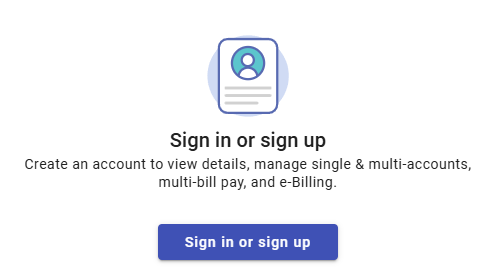
Sign in to the Utility Access Portal. If you have used the city eplace portal for a permit, plan, or license, use those login credentials. If you are a first-time user, select Create an Account at the bottom.
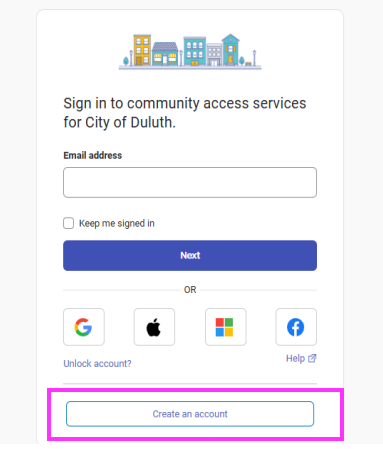
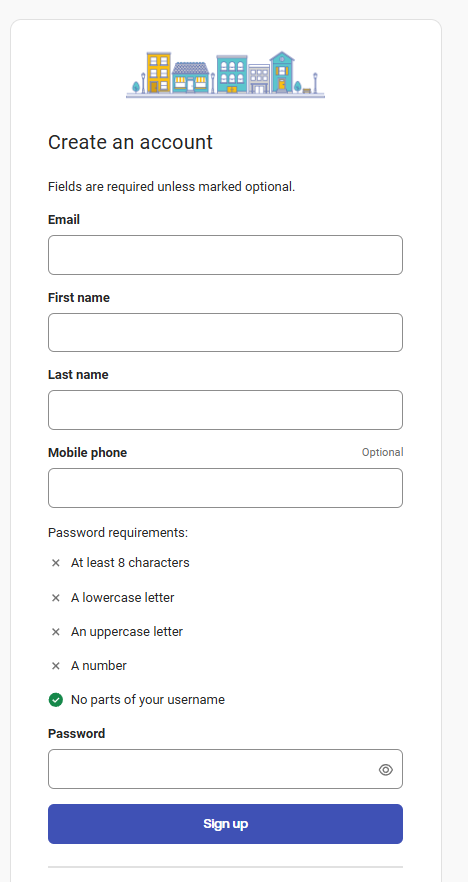
Enter your credentials: Email, First Name, Last Name, Mobile Phone, and a Password. Password Requirements include: 8 characters, an upper case, lower case, a number, and no parts of your username. Once entered, click Sign Up.
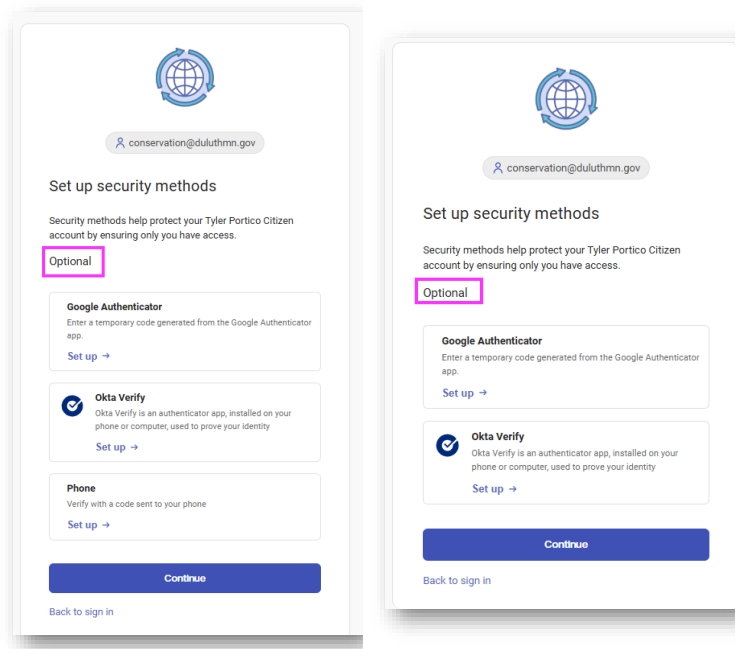
The next screens off an option to use Multi-Factor Authentication for your Auto Pay information. This is optional. If you do not want to enable multi-factor authentication, click continue.
At this point, Utility Access validates your email address. Enter the Code from the email to verify your account creation.
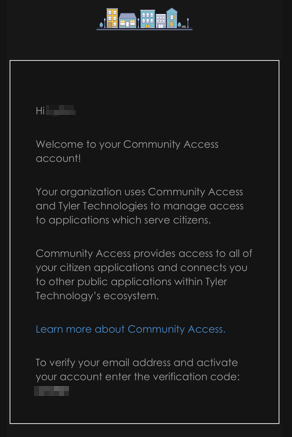
After registering, you are redirected to the ePlace portal to login.
Saving a Payment Method in the Customer Portal
To add your payment method(s) in the upper right-hand corner of the portal. Select the circle with your initials and select Payment Info.
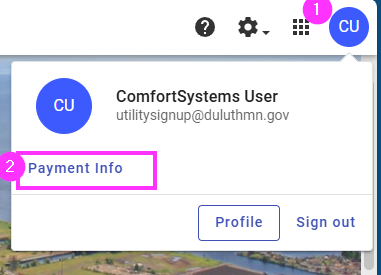
Enter the payment method(s)
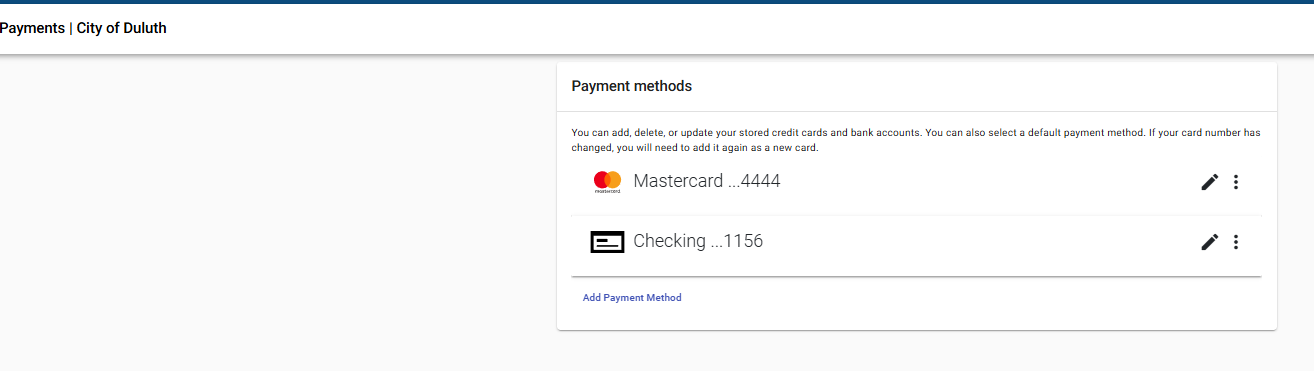
If you need to edit an expiration date, you can do so by editing the payment method using the pencil on the right-hand side of the payment method. Users can enter as many payment methods as he or she chooses.
Create one login as the main company login.
Other members of that company can login using their personal login credentials and associate that login with the main company login to view records.
Once logged into ePlace, in the upper right-hand corner, click on your user name and select contact manager.
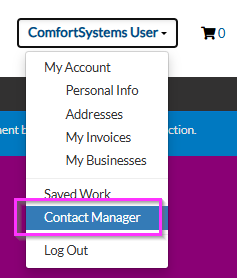
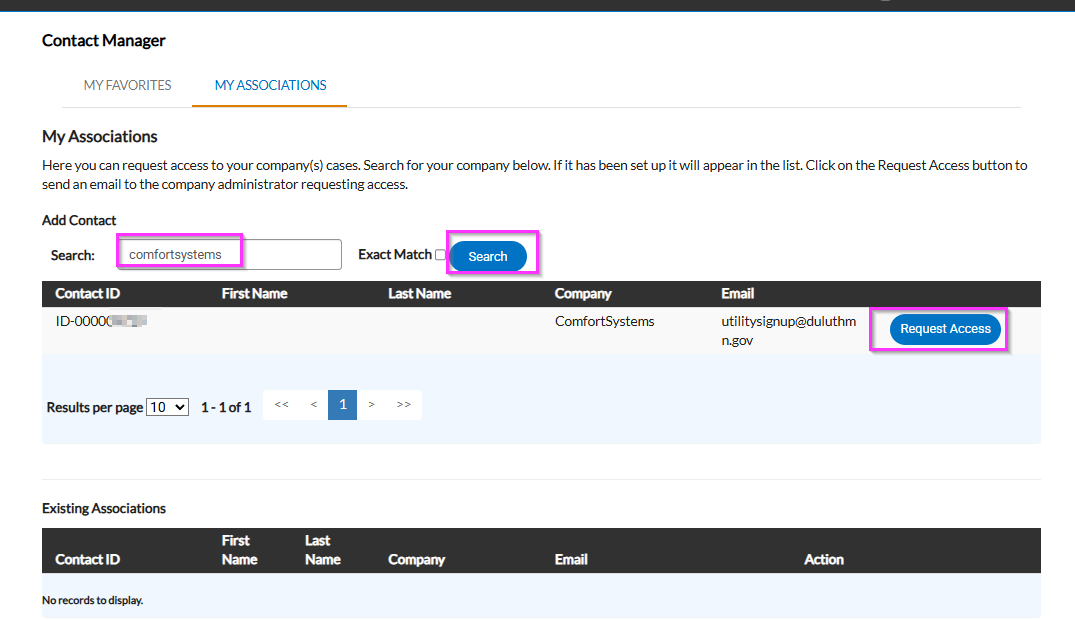
Under the My Associations portion, search for the company by name or email. Once located, select request access
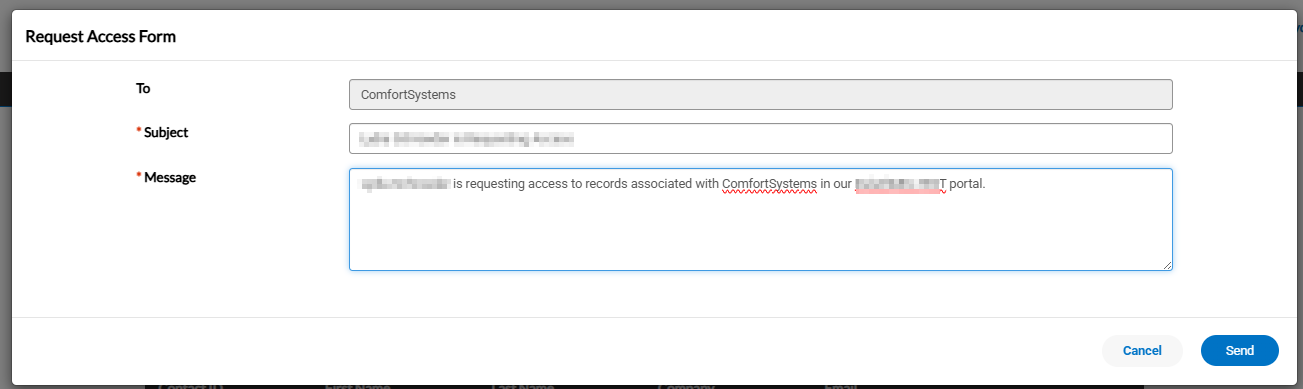
This brings up an email box that is directed to the company email for approval.
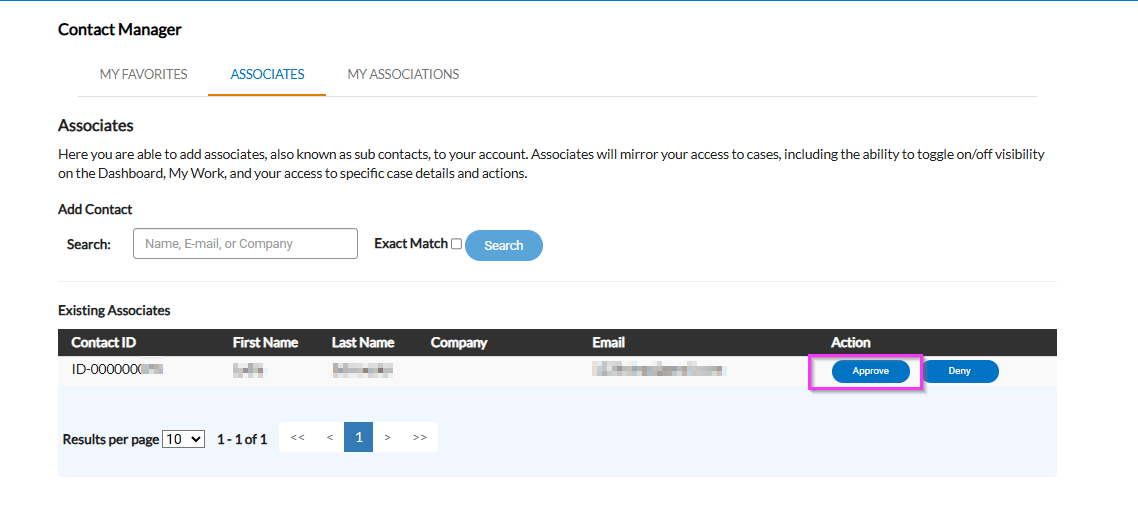
The main company login then approves the association and can manage the sub contacts as members of the company change
Video Help Library
Registering for the ePlace Portal
Video showing customers how to register for the ePlace portal if the customer does not already have a login with ePlace, the Resident Reporter, or the Utility Access Portal
Submitting an Application
This video walks applicants on the steps needed to apply for a record, select the location, enter contact information and provide details, including attaching the appropriate records for review for each application.
Welcome Screen
An overview video of the welcome screen of the ePlace portal
Signature and Review
This video highlights the final step of submitting an application
Troubleshooting Login Tips
Need assistance with logging in? This video assists customers with login issues, resetting a password, unlocking an account, or updating account information
Map Overview
Video explaining how the map can be used to search, select, and measure or apply for records, view records, and more
Reviews
This video covers electronic review files in the ePlace portal.
Contact
24 Hour Emergency Numbers
Water, Sewer: 218-730-4000
|
Snow & Ice
Roads
Storm Water/Drainage
Water/Sewer
Sewer Backups and Odor
Hydrant Issues
Pot Holes
|
Subscribe to receive alerts about emergencies and other important community news.